User Interface
This page is a reference map of the UELer interface — the four main regions and the controls in each. For a hands-on first run, see Basic Usage.
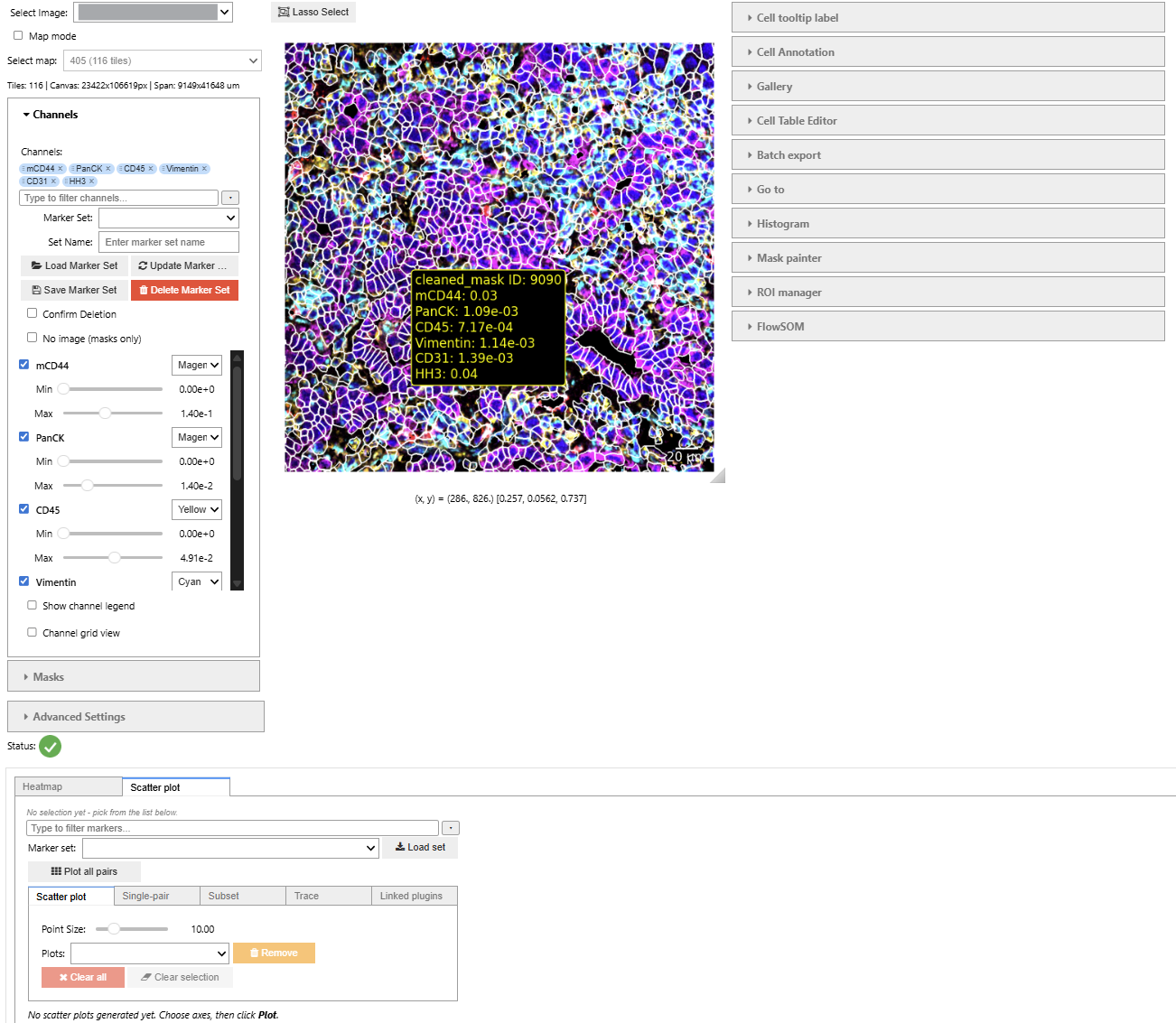
Layout Overview
The left panel's accordion is built from your data: the Channels section is always there,
Masks appears only if masks_folder yielded readable masks, and Pixel annotations only if
annotations_folder did. A section you cannot find is usually a path that did not load rather than a
setting to switch on.
| Region | Location | Contents |
|---|---|---|
| Left panel | Left column | FOV selector, channel / mask / annotation controls, marker sets, advanced settings |
| Main viewer | Center | Image canvas, lasso toggle, zoom/pan, scale bar |
| Right panel | Right column | Plugin tools (accordion) |
| Footer | Bottom | The wide plugins — Scatter plot and Heatmap |
Plugin placement is fixed, not adaptive: each plugin lives in either the right-panel accordion or the footer, and never moves between them. The Scatter plot and Heatmap are footer-only because both need the full window width to be readable, so they are absent from the accordion entirely — look for them at the bottom of the viewer, not on the right.
Left Panel
Top controls
- Select Image: — choose the active FOV.
- Cache Size: — number of FOVs kept in memory at once (default 100).
Channels
- Channels: — a searchable picker for the visible channels. Click the field to browse the full scrollable list, type to filter it (case-insensitive), and use Select all shown to take a whole filtered group at once or Clear to drop everything. Keyboard: ↑/↓ move, Enter toggles, Esc closes, Backspace on an empty filter box removes the last selection.
- Reordering the selection — each selected channel appears as a chip. Drag a chip by its
⋮⋮grip to move it; a blue bar marks where it will land, and dropping past the last chip sends it to the end. You can also click a chip and press ← / → to move it, or Delete to remove it. The order is applied to the per-channel controls below and to the order channels are composited in. - Per-channel color dropdown, visibility checkbox, and Min / Max contrast sliders — one row per selected channel, listed in the order of the chips above. Reordering the chips reorders these rows and keeps each channel's colour and contrast settings.
- Show channel legend — display a color key for the visible channels.
- Channel grid view — render each visible channel as its own labelled pane in a synchronized grid.
Masks
A separate accordion section, present only when masks_folder contained readable masks:
- Mask <name> dropdowns + enable checkboxes — one row per mask layer, each with a single uniform colour.
- Mask outline px: — outline thickness, applied to every mask layer.
For per-class fill/outline, opacity, continuous colour scales, and saved palettes, use the Mask painter plugin instead.
Marker Sets
Save and restore named channel/color/contrast combinations: Marker Set: dropdown, Set Name: input, and Load / Save / Update / Delete Marker Set buttons (deletion is gated by a Confirm Deletion checkbox).
Pixel annotations
Also its own accordion section, visible when annotations_folder contains valid rasters:
- Show annotation — toggle the annotation overlay.
- Annotation: — choose which annotation to display.
- Fill alpha: — overlay transparency.
- Legend labels: — show class IDs or text labels.
- Edit palette… — customize per-class colors (with save/load of
.pixelannotations.jsonsets).
Advanced Settings
Data-mapping keys (X key:, Y key:, Label key:, Mask key:, Fov key:), the Pixel Size (nm): input that drives the scale bar, and a Downsample toggle.
Main Viewer
- Image canvas — the composited multi-channel image with any active overlays.
- Lasso Select (top of the viewer) — a one-shot toggle: draw a freehand lasso to select the cells whose mask centroids fall inside it. The toggle resets itself after each lasso. (Selection drives the linked plots and gallery — see Working with a Cell Table.)
- Zoom and pan — scroll to zoom, drag to pan.
- Scale bar — computed from the Pixel Size (nm): value when available (there is no separate on/off toggle; set the pixel size to 0 to omit it).
- No image (masks only) — hide the channel image to inspect overlays on a blank background.
Right Panel (Plugins)
Plugins appear as an accordion. Which plugins load depends on whether a cell table is present:
- Without a cell table, only these two load — both work on images alone:
- ROI manager — capture, tag, draw, and browse regions of interest. See Regions of Interest.
- Batch export — export FOVs, ROIs, and single-cell crops. See Batch Export.
- With a cell table loaded, the analytical plugins also appear:
- Histogram — linked per-channel distributions. See Scatter & Histogram.
- Gallery — thumbnails of the currently selected cells.
- FlowSOM and Cell Annotation — clustering and checkpoints. See Clustering & Annotation.
- Mask painter — per-class mask colors, fill/outline modes, opacity, and saved palettes.
- Go to — jump and zoom to a specific cell.
- Cell Table Editor — write a value onto the selected cells.
- Cell tooltip label — choose which cell-table columns appear in the hover tooltip.
Two plugins are not in this list
Scatter plot and Heatmap also require a cell table, but they live in the footer rather than the accordion. Do not go looking for them on the right.
Panel order
The right-panel accordion order is not curated — locate a plugin by its name rather than its position.
Footer (Wide Plugins)
Two plugins are allocated permanently to the horizontal footer panel, so the main viewer stays visible above them. Neither appears in the right-panel accordion, and neither has a toggle for moving it — the placement is not a preference:
- Scatter plot — single-pair and all-pairs scatter matrices. A triangular matrix of scatters is unreadable at side-panel width, which is why the plugin lives here whether one scatter is active or twenty. See Scatter & Histogram.
- Heatmap — the cluster × marker heatmap, always drawn in its wide (horizontal) orientation. See Clustering & Annotation.
Both require a cell table, so the footer is empty until one is loaded.